
Checkout Field Editor
Change the billing, shipping and order fields of the checkout, or add your own.
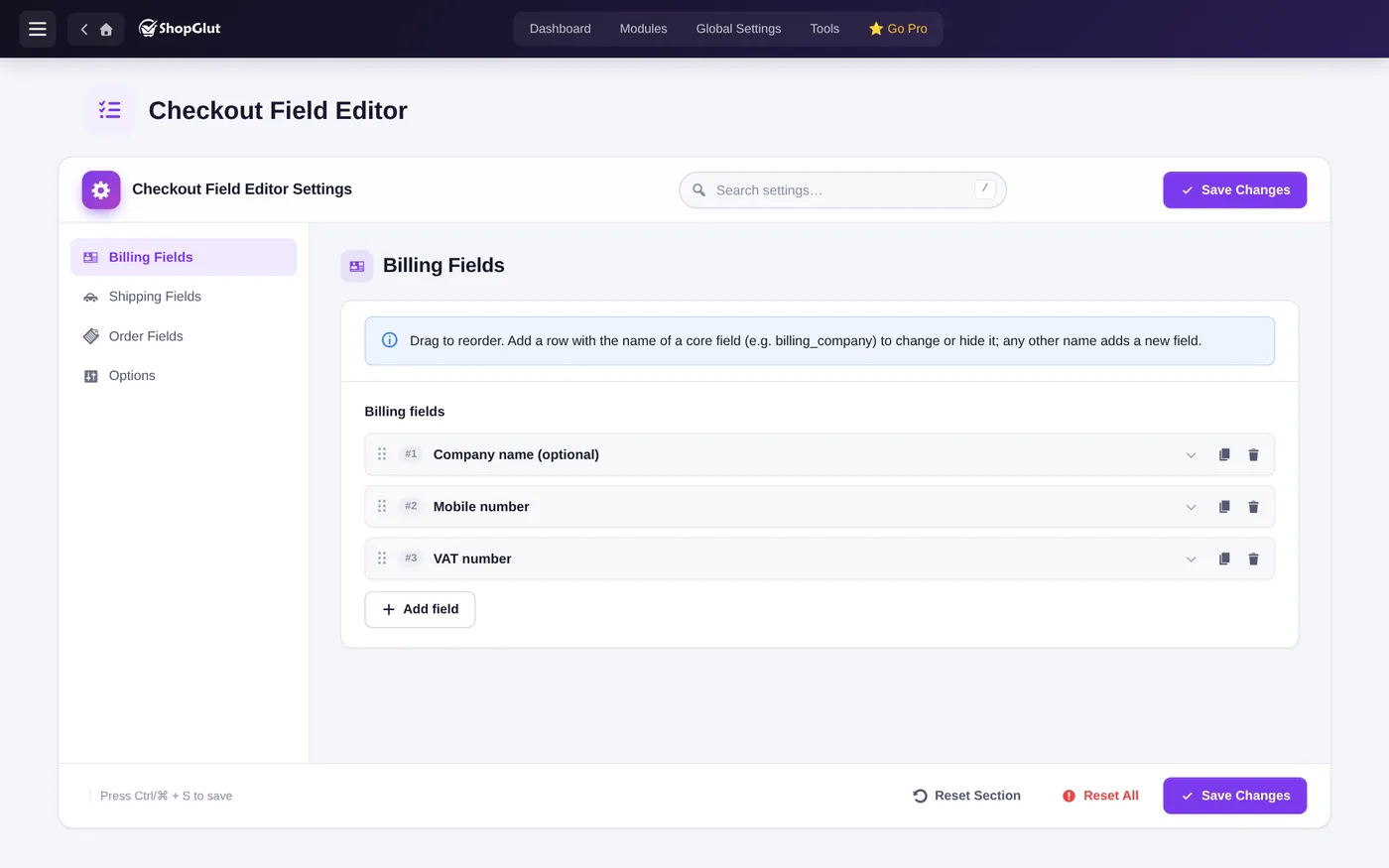
Change a WooCommerce field
Add a row with the field’s name (for example billing_phone or billing_company) and change its label, placeholder, width, required switch or position in the list. Turn Show on checkout off to hide it.
Add a new field
Add a row with a new name (lowercase, numbers and underscores, for example vat_number) and pick a type: text, textarea, email, phone, number, select, radio, checkbox or date. For select and radio, write one option per line as value | Label.
Where new fields show
- Saved on the order (meta key = the field name).
- Order screen in the admin, the customer’s order page and thank you page.
- Order emails.
Block checkout
New fields also appear in the Checkout block (billing fields in the contact step, shipping fields with the address, order fields in the order step). Changes to WooCommerce’s own fields apply to the classic checkout.