
Variation Swatches
Show swatches instead of dropdowns for variable products. Shoppers click a color or size; choices that are not available are crossed out.
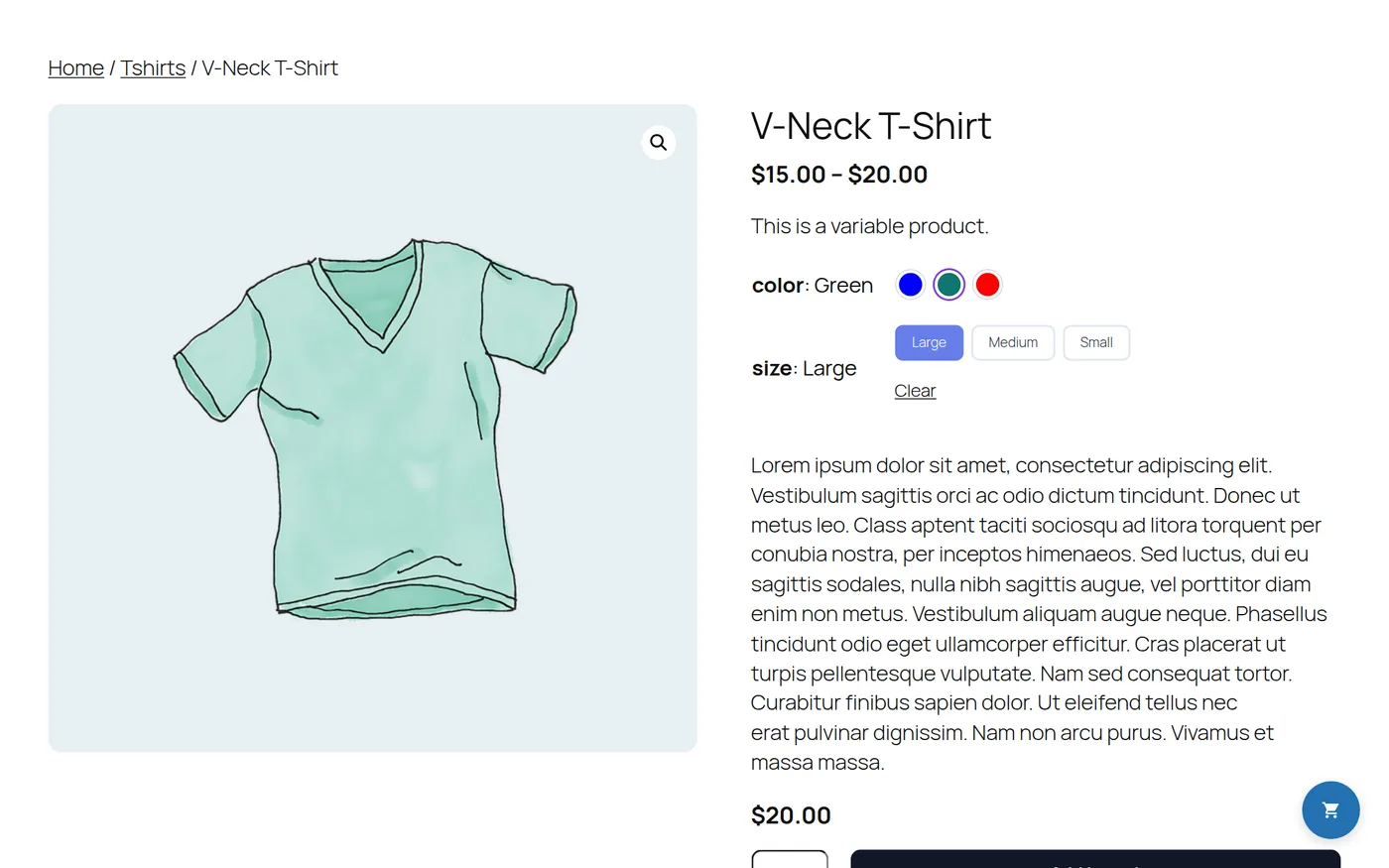
1. Set colors, images and labels on terms
- Go to Products › Attributes and click Configure terms on an attribute (for example Color).
- Edit a term and set its Swatch color, Swatch image or Short label (for example XL).
- Save. The swatch shows in the term list.
Colors named like CSS colors (red, navy, black…) work without setting anything.
2. Create a swatch style
Open Variation Swatches, click New layout and pick a style. In Display Rules choose the attributes it is for, or leave it empty for every attribute.
| Template | Style |
|---|---|
| 1 | Styled dropdown |
| 2 | Buttons |
| 3 | Round color |
| 4 | Square color |
| 5 | Image |
| 6 | Pill label |
| 7 | Radio list |
| 8 | Color with label |
| 9 | Image with label |
| 10 | Underline |
Options
- Size, shape, space, colors and the selected color.
- Show the chosen value next to the attribute name.
- Tooltip with the name.
- Unavailable choices: cross out, fade or hide.
- Click a chosen swatch again to deselect it.
Tip: use one style for colors (template 3) and another for sizes (template 2), each limited to its attribute.