
Product Badges
Show Sale, New and Out of stock badges on product images or before product titles.
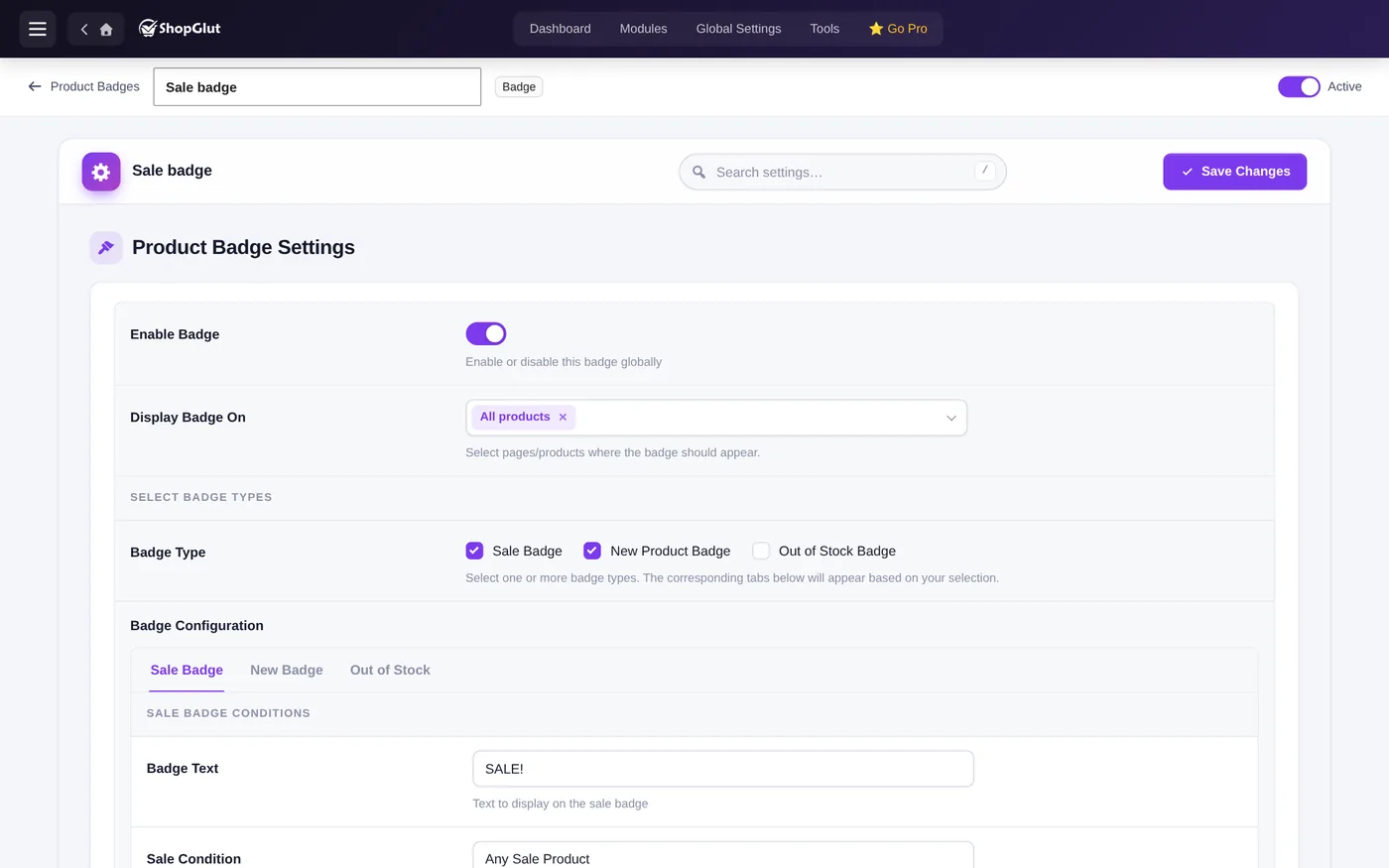
Create a badge
- Open Product Badges and click New layout.
- Turn on Enable Badge and choose where it shows in Display Badge On.
- Tick the badge types and set each one in its tab.
- Save and turn the layout on.
Conditions
- Sale: any sale, a percentage discount, a fixed discount, or a minimum discount.
- New: products added in the last X days.
- Out of stock: all products, simple only or variable only.
Where and how
- On the product image in one of 6 positions, or before the title.
- On all products, the shop page, single product pages, all categories or tags, or chosen categories and tags.
- Text, colors, gradient, font size and weight, padding, radius, border and shadow.
When a sale badge is active, WooCommerce’s and the theme’s own “Sale!” flash is hidden, so it doesn’t show twice.